

WinBoat on Linux Mint: complete guide

Guide index
- What is WinBoat
- System requirements
- Installation on Linux Mint
- Initial configuration
- Install Windows applications
- Manage containers
- Practical tips and performance
- FAQ
1. What is WinBoat
WinBoat is a container-based system (Docker or Podman) that lets you launch Windows applications on Linux with integrated desktop windows, as if they were native apps. Each application lives in a separate container: fewer conflicts, more stability and better performance than a virtual machine.
- Pros: desktop integration, stability thanks to isolation, lower power usage, less tinkering than Wine.
- Cons: not total compatibility for all apps; some games with DRM may not work.
2. System requirements
- RAM: minimum 4 GB (8 GB recommended).
- CPU: at least dual core.
- Disk space: 10 GB free (SSD is better).
- GPU: up-to-date drivers.
- Network: Internet connection to download images and updates.
3. Installation on Linux Mint
3.1 – System update
sudo apt update && sudo apt upgrade -y
3.2 – Install Docker
🔷 Option A – From distribution repositories
Use this only if the packages are available in your repositories.
sudo apt update
sudo apt install -y docker.io
docker-buildx-plugin docker-compose-plugin
If docker-compose-plugin is not available (common on Mint 22 / Ubuntu 24.04 “noble”), switch to Option B.
🔷 Option B — Official Docker repository (recommended)
# 1) Prerequisites
sudo apt update
sudo apt install -y ca-certificates curl gnupg

# 2) Add Docker GPG key and repository
sudo install -m 0755 -d /etc/apt/keyrings
curl -fsSL https://download.docker.com/linux/ubuntu/gpg \
  | sudo gpg --dearmor -o /etc/apt/keyrings/docker.gpg
sudo chmod a+r /etc/apt/keyrings/docker.gpg

. /etc/os-release
echo "UBUNTU_CODENAME=$UBUNTU_CODENAME"
echo "deb [arch=$(dpkg --print-architecture) signed-by=/etc/apt/keyrings/docker.gpg] \
https://download.docker.com/linux/ubuntu $UBUNTU_CODENAME stable" \
| sudo tee /etc/apt/sources.list.d/docker.list > /dev/null

# 3) Install Docker CE + Compose + Buildx
sudo apt update
sudo apt install -y docker-ce docker-ce-cli containerd.io \
  docker-buildx-plugin docker-compose-plugin
Post-installation (permissions and service)
# Enable and start the Docker daemon
sudo systemctl enable --now docker

# Add the current user to the docker group
sudo usermod -aG docker "$USER"

# Apply the permissions right away (or log out/in)
newgrp docker
Verify Docker
docker --version
docker compose version
systemctl is-active docker      # expected: active
systemctl is-enabled docker     # expected: enabled
docker run --rm hello-world     # message "Hello from Docker!"
Some apps (e.g., WinBoat) read group changes only after a new login: if permissions are not recognized, log out/log in or reboot.
👉 Read here: Curious about Linux? I explain everything simply
3.3 – Install WinBoat
Recommended method: .deb package (amd64)
- Download the official
.debfile from the WinBoat website (Download section → “.deb amd64”), or via terminal:cd ~/Downloads
curl -s https://api.github.com/repos/TibixDev/winboat/releases/latest \
| grep browser_download_url | grep -E 'amd64\.deb" - Install (APT will resolve dependencies automatically):
(Or) Use the AppImage version – Download it from sitecd ~/Downloads
sudo apt install -y ./winboat-latest-amd64.deb
3.3.1 – Prerequisite: FreeRDP
If when you click a WinBoat app you only see a black screen that closes immediately, you probably miss FreeRDP, required to start Windows apps.
# Check: if it’s not present you’ll see a suggestion to install it
xfreerdp /version || echo "FreeRDP is not installed"

# Installation (try 3.x first, otherwise use 2.x)
sudo apt update
sudo apt install -y freerdp3-x11 || \
sudo apt install -y freerdp2-x11

# Version check
xfreerdp /version

# Restart components and try WinBoat again
sudo systemctl restart docker
pkill -f winboat
winboat &
On Linux Mint 22 and Ubuntu 24.04 the 3.x version is called freerdp3-x11. If unavailable, freerdp2-x11 works great and is compatible with all WinBoat apps.
3.4 – Verify installation
winboat --version
3.5 – Resolving prerequisites (WinBoat startup screen)
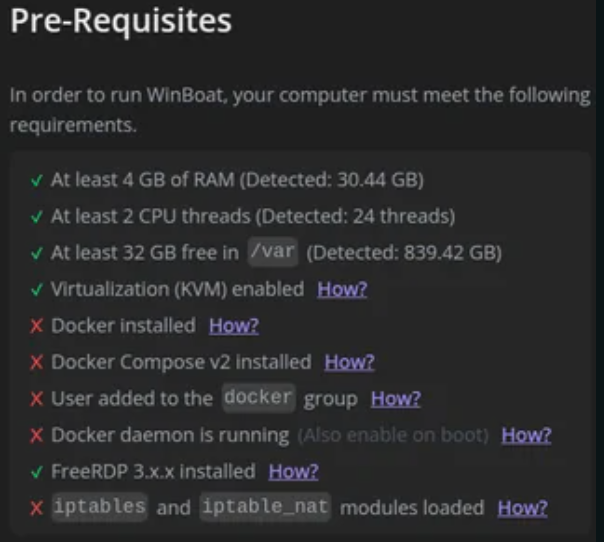
“User added to the docker group (Relog required)” stays red
sudo usermod -aG docker "$USER"
logout   # or reboot
“Docker daemon is running (Also enable on boot)” stays red
sudo systemctl enable --now docker
systemctl is-active docker   # expected: active
Error “permission denied … /var/run/docker.sock”
id -nG | grep -w docker
ls -l /var/run/docker.sock   # expected: root docker  srw-rw----
sudo chgrp docker /var/run/docker.sock
sudo chmod 660 /var/run/docker.sock
Final checks
docker ps                 # must work without sudo
docker info | head -n 20
If WinBoat still shows red items, completely close the program (pkill -f winboat) and reboot the system. After the reboot they will all turn green. ✅

4. Initial configuration
On first launch WinBoat requires:
- Creating a WinBoat user profile.
- Choosing a library folder (recommended:
~/WinBoaton SSD). - Enabling desktop integration (icons and menu entries).

👉 Read here: How much you save using Linux instead of Windows
5. Install Windows applications
5.1 Preconfigured apps
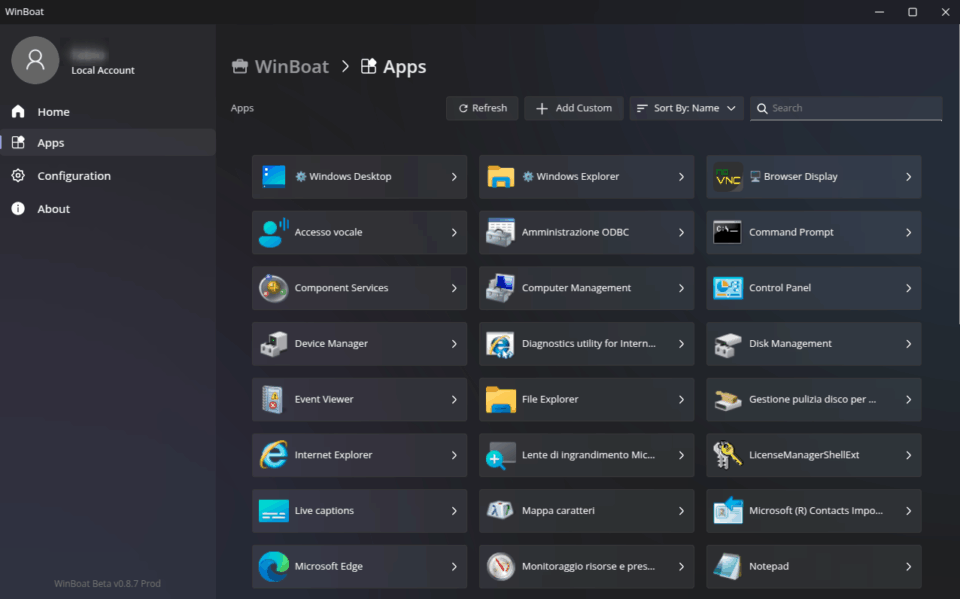
Inside WinBoat, in the left menu you’ll find the Apps section. It already contains several preconfigured Windows applications (e.g., Notepad, Paint, WordPad and others).
No manual installation required: just enter the Apps section, choose the desired app and click “Run” to open it.
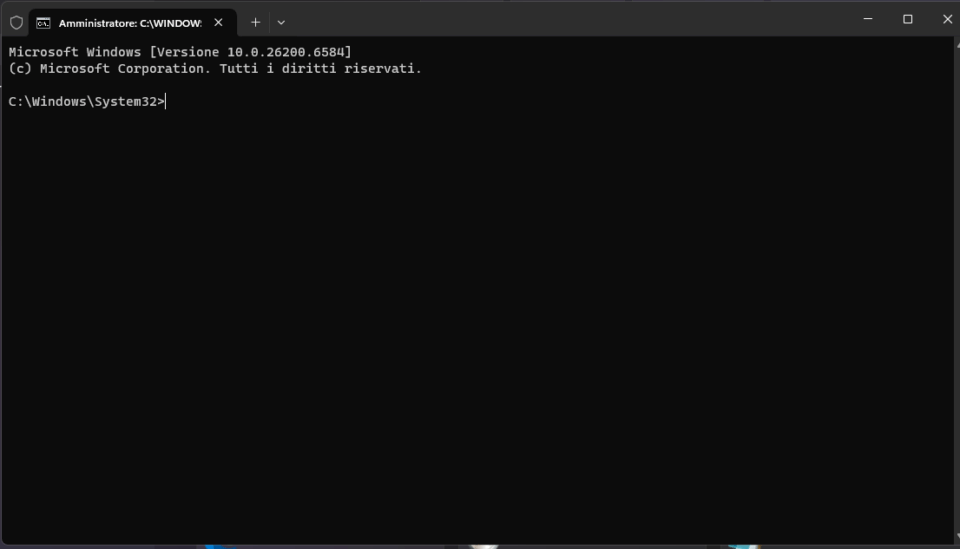
To start applications that are not in the list, we recommend launching the Windows desktop first and then performing the installation of the program you need inside it.

5.2 Apps from a .exe file
Want to install your own program (e.g., an .exe installer downloaded from the official site)? Follow these steps directly in WinBoat → Apps.
Steps
- Open WinBoat → go to Apps (left menu).
- Click Add Custom.
- Name: enter a recognizable name for the app (e.g., “7-Zip”).
- Path: enter the path to the application.
NOTE: we tested this system, but we encountered some issues; hopefully they will be fixed in the final version.


👉 Read here: Flameshot: the tool you can’t miss on Linux
6. Manage containers
# List applications/containers
winboat list

# Update everything
winboat update --all

# Remove an app
winboat remove app-name

# Snapshot and rollback
winboat snapshot office-2021 pre-plugin
winboat rollback office-2021 pre-plugin
7. Practical tips and performance
- Use an SSD (NVMe is better) for fast startup times.
- One container per app → maximum stability.
- On older PCs prefer Xfce as desktop environment.
- “Official”/preconfigured containers are more reliable.
8. FAQ
Does WinBoat replace Wine?
For the majority of users yes: it’s simpler and more stable.
Does it work on old PCs?
With Xfce and at least 8 GB RAM it works fine.
will it run Arcom RC210 repeater controller program for amateur radio
I haven’t tested RC210 personally, but many Windows ham radio applications work fine with Wine/WinBoat.
The biggest variable is USB/serial controller support and drivers.