

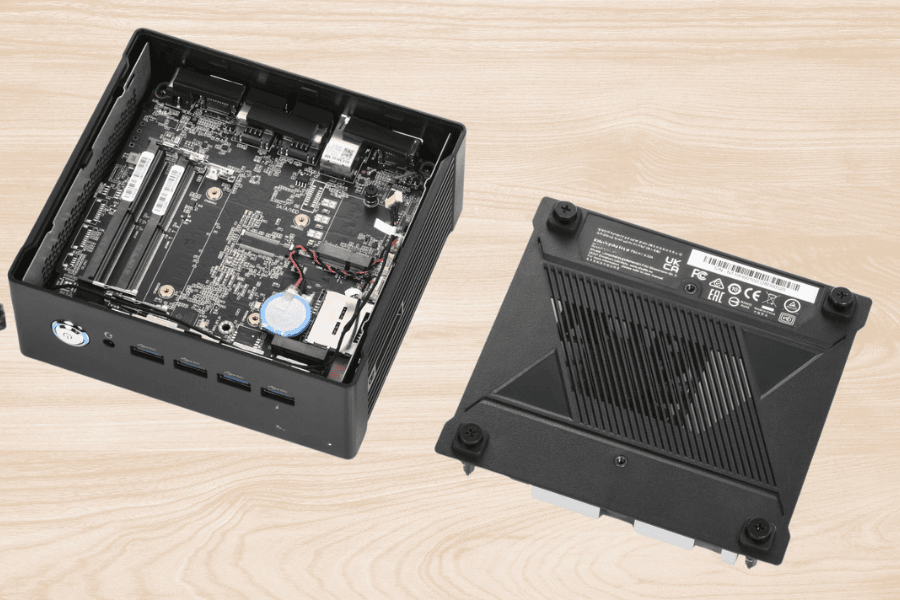
Mini PC won’t turn on? Complete guide to diagnose and fix the issue

The Mini PC won’t turn on: first essential check
When you press the power button, the Mini PC should show at least some signs of life: fans spinning, LEDs lighting up, sounds of the boot process.
- If nothing happens: no lights, no fans, no sound, the first and most important step is to check the power outlet.
- Try changing the plug or using a different wall socket, maybe connect another device to make sure it works.
- Never underestimate external power issues, they are the most common cause.
BIOS reset: our proven method
After daily discussions with various enthusiast and technical communities, we have gained direct experience that allows us to offer trusted advice. We know well how effective a BIOS reset can be to “revive” Mini PCs that seem dead.
Proceed carefully:
- Unplug the Mini PC from the power source.
- Open the case carefully: WiFi antennas are often glued inside with double-sided tape. If broken, you can replace them with original components available here: Wi-Fi M.2 compatible cards.
- Locate the CMOS battery (a small button battery on the motherboard), remove it for at least 2 minutes to reset the BIOS.
- Reinsert it carefully and try powering on.

Power supply: what to know and how to proceed
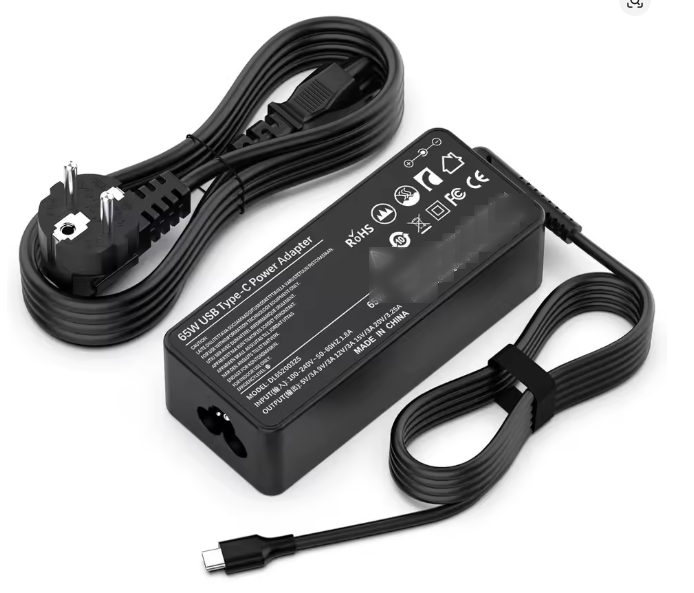
Mini PCs more commonly have an external power supply than an internal one.
- If your Mini PC uses an external power supply, get a new one with the same voltage and amperage specs, as a defective power supply is a common cause of no power.
- If your Mini PC has an internal power supply (rarer), we recommend contacting the manufacturer or a qualified repair center to avoid risks.
- If you want to DIY, remember that internal power supply intervention can void warranty and must be done carefully.
The Mini PC powers on: what to do?
If the PC shows signs of life (fans, LEDs, sounds), but doesn’t boot properly, it’s time to investigate:
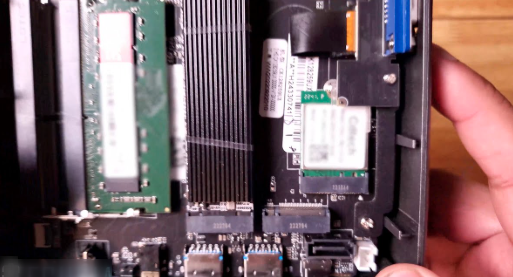
- Check that RAM and SSD are properly seated.
- Try removing one RAM stick if you have more than one and power on with only one.
- If the screen stays black, check video connections and try an external monitor.
- If the system is stuck or shows errors, consider software recovery or reinstall.
👉 Read here: Mini PC 2025: Which to choose for the end of 2025
👉 Read here: Noisy PCs? Here’s why and how we make them quiet
Final note: practical guide for everyone
This guide was designed as a simple, accessible pathway for everyone, without requiring special tools like testers or measuring devices. We wanted to create easy-to-understand content for anyone with a Mini PC that won’t turn on, offering straightforward, actionable solutions.
If the problem is more complex or requires technical intervention, we recommend professional or authorized repair centers.
Useful tools and backup
Always keep a ready-to-use Linux USB stick like ours on hand, which can help you restore the OS in case of software problems.
👉 Try it here: USB Stick 8GB Linux Ready by IncastroPC – https://incastropc.com/products/chiavetta-usb-8gb-linux-ready-by-incastropc